Family Loan
Family Loan

Step OneClick on the electronic submission option from the required product page | 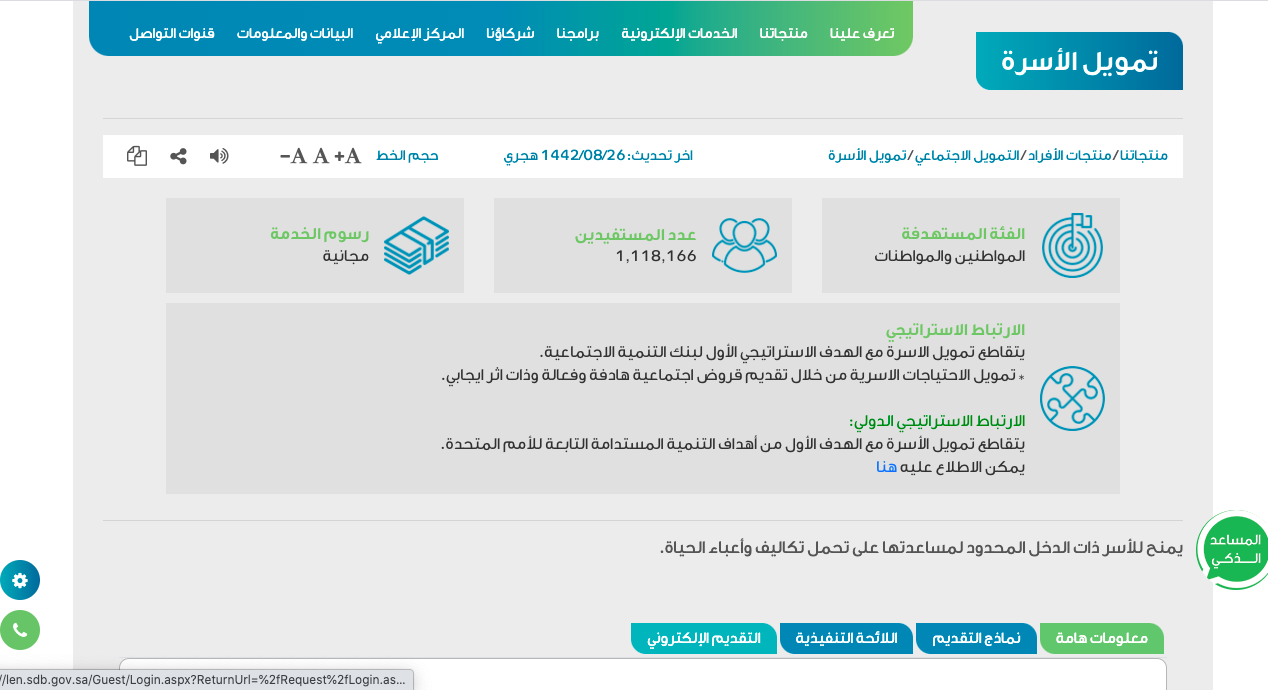 |
Step 2Login via the National Single Sign-On Portal | 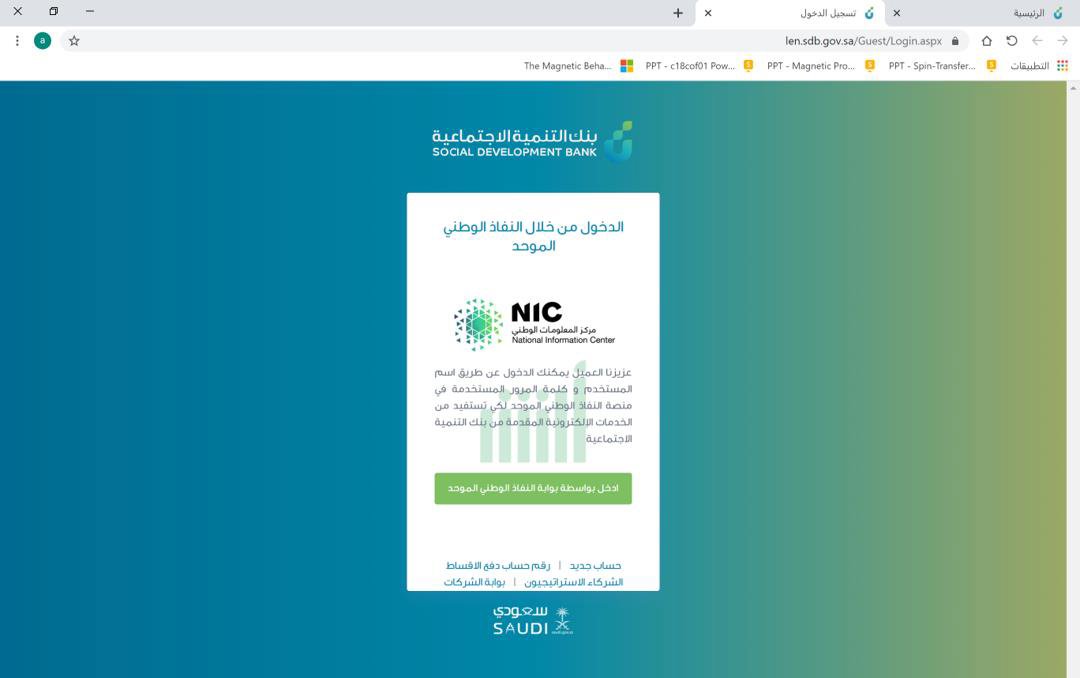 |
Step ThreeFrom the Individual Products Page, Choose the Required Financing | 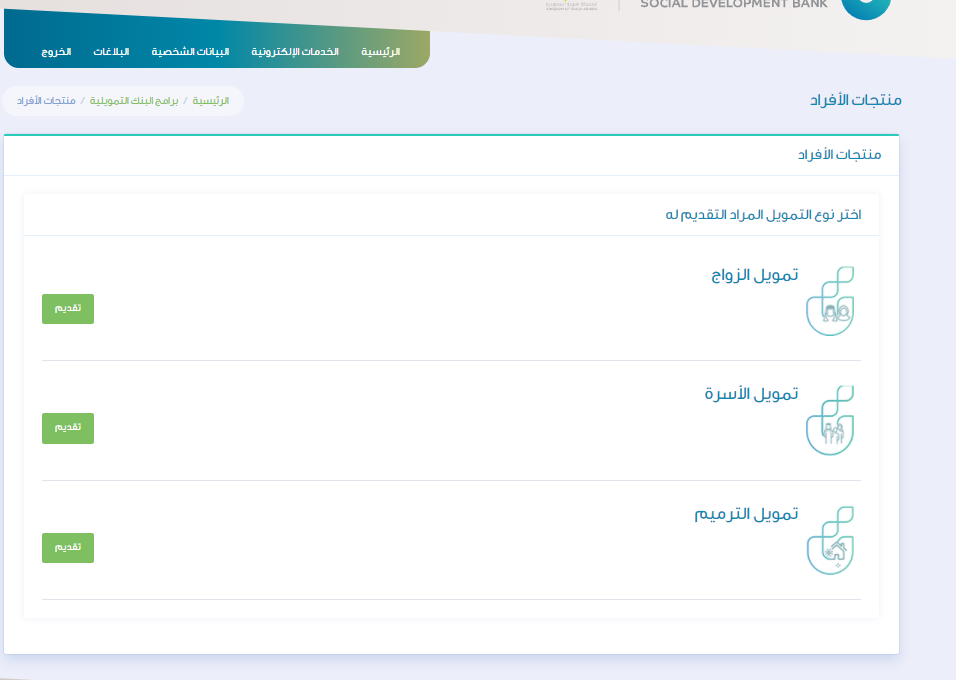 |
Step FourOn the new financing request page, choose the branch | 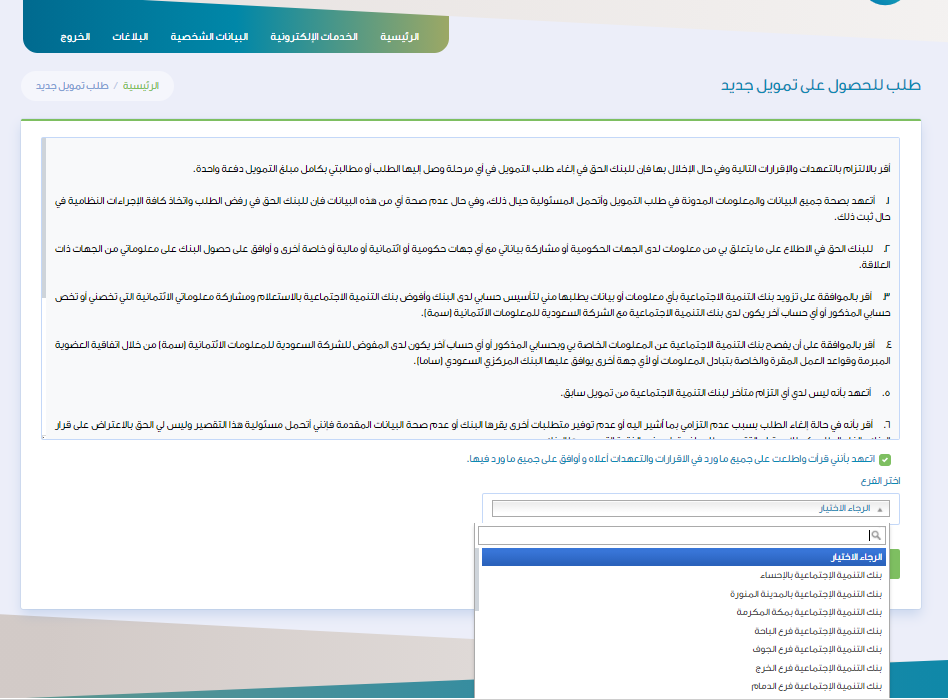 |
Step FiveThe application registration page clears the data and communication between customers' clients in the personal data that is automatically identified jointly with government agencies.
*The link includes data for both the borrower and the guarantor.
*The link includes data for both the borrower and the guarantor. | 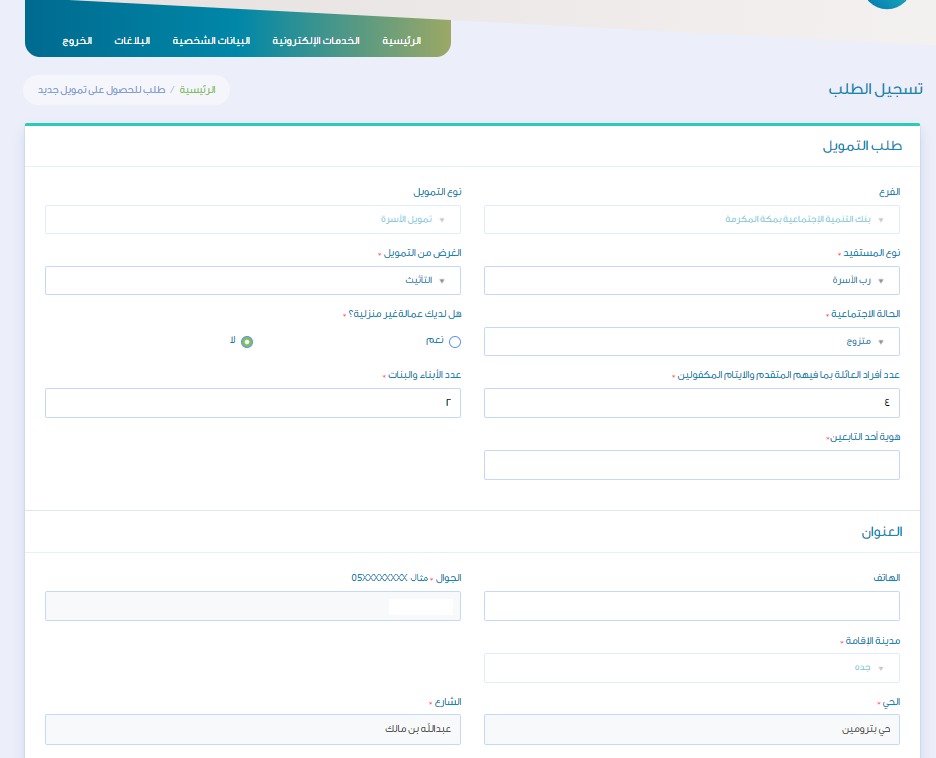 |
Step 6Acknowledge the correctness of all data and save the application | 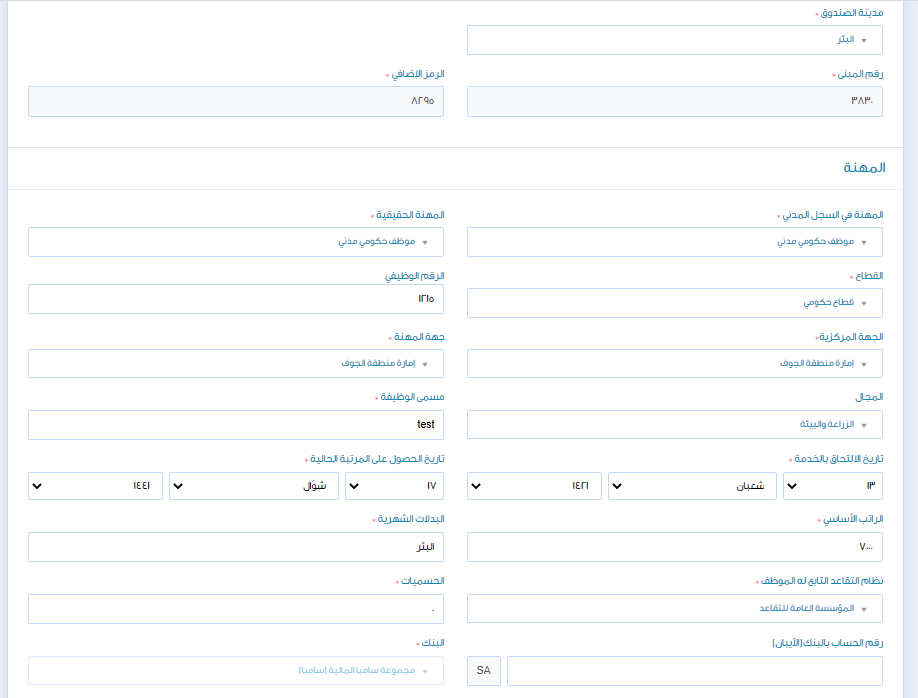 |
Step SevenYou can edit the financing data and complete the application later from the options bar and choose the Financing Data You can edit the financing data and complete the application later from the options bar and choose the financing data | 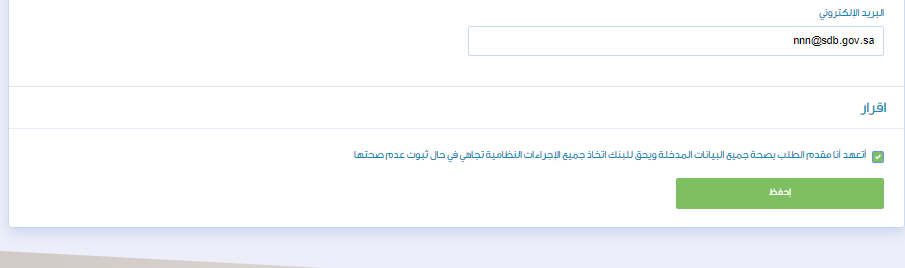 |
Step EightIf there is a sponsor, the sponsor's work data is filled in If there is a direct link between the bank and the employer, the data is retrieved automatically | 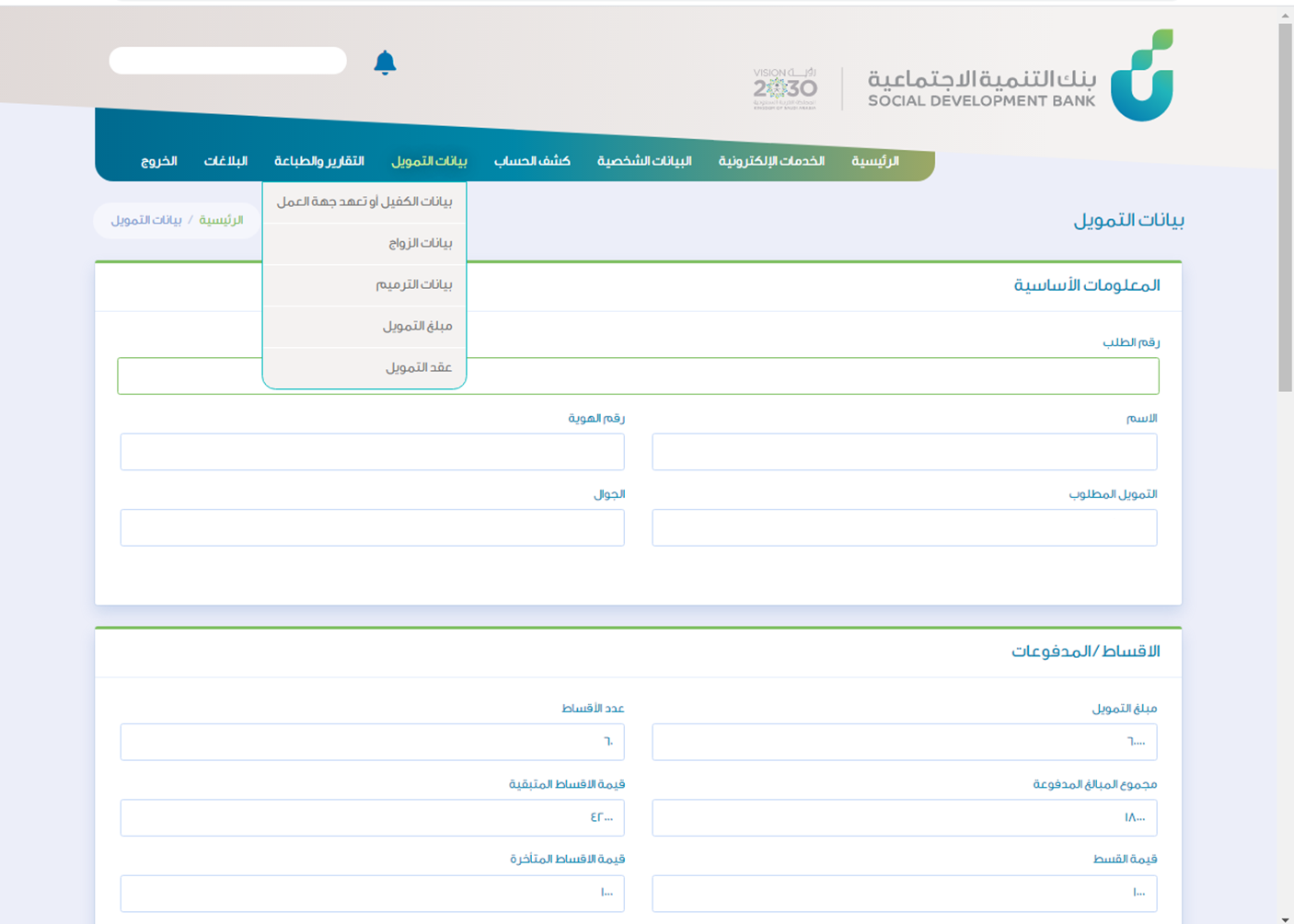 |
Step NineChoose the required monthly installment | 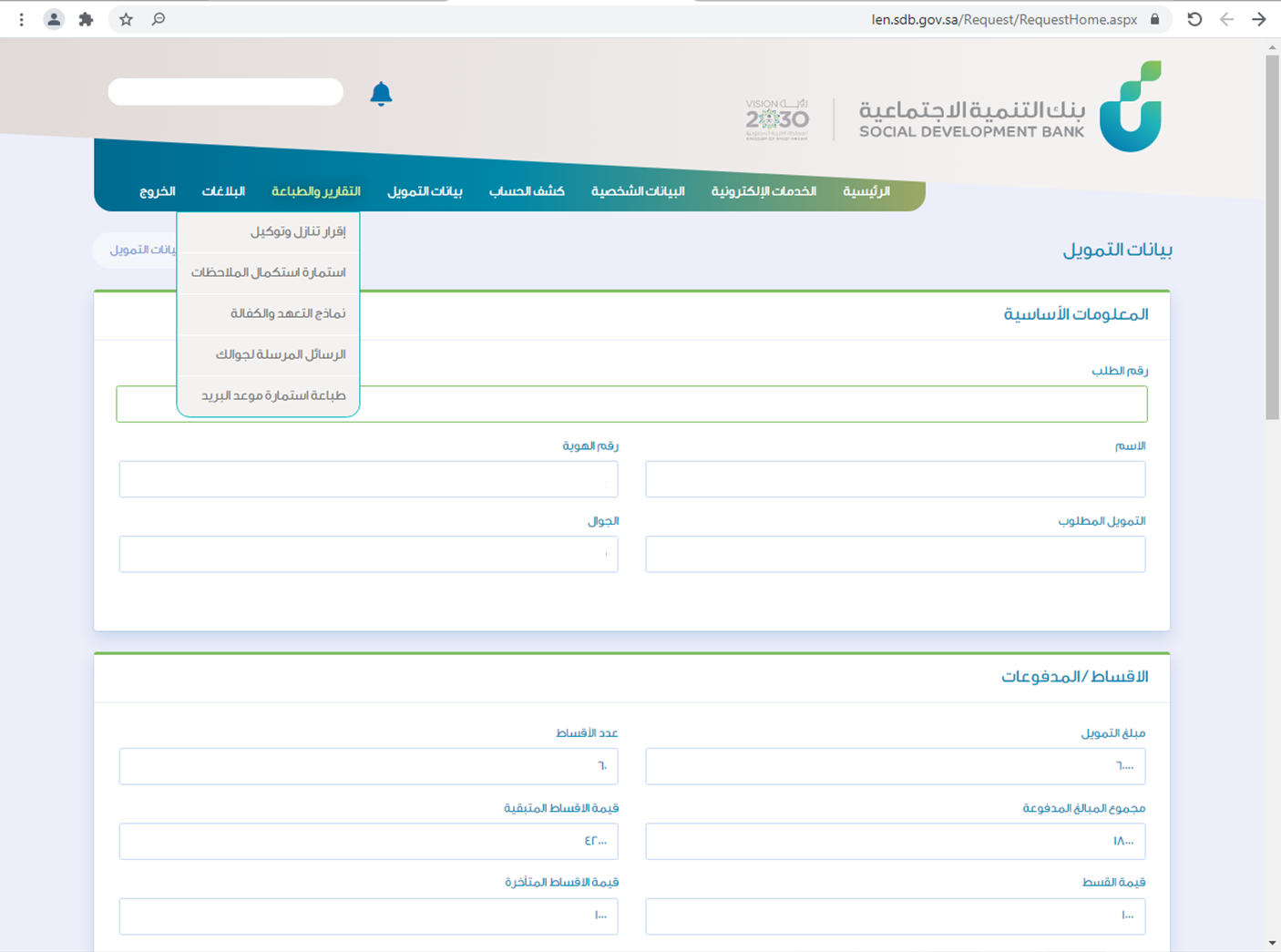 |
Step TenUpload the required documents and then click on the Save icon You can click on the Save icon for each ready document and continue later if the complete documents are not available | 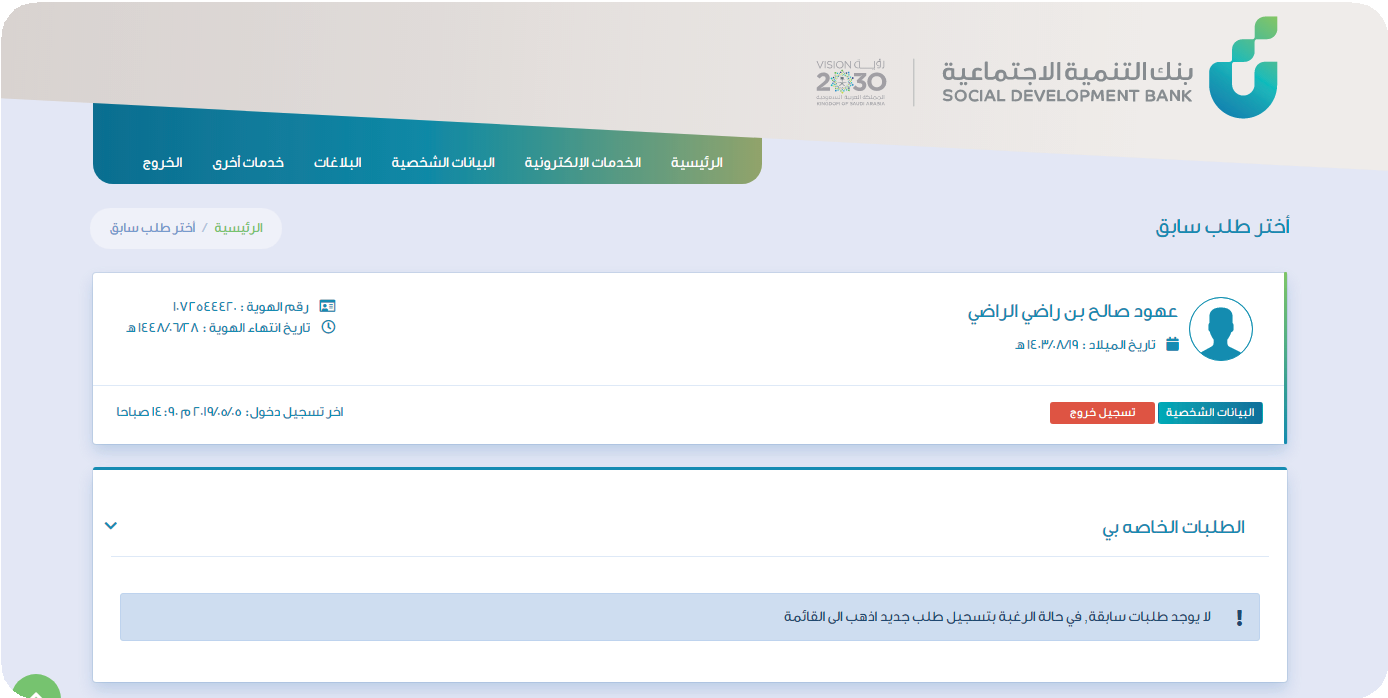 |
Step ElevenIf the documents are complete, click on the icon to approve all files | 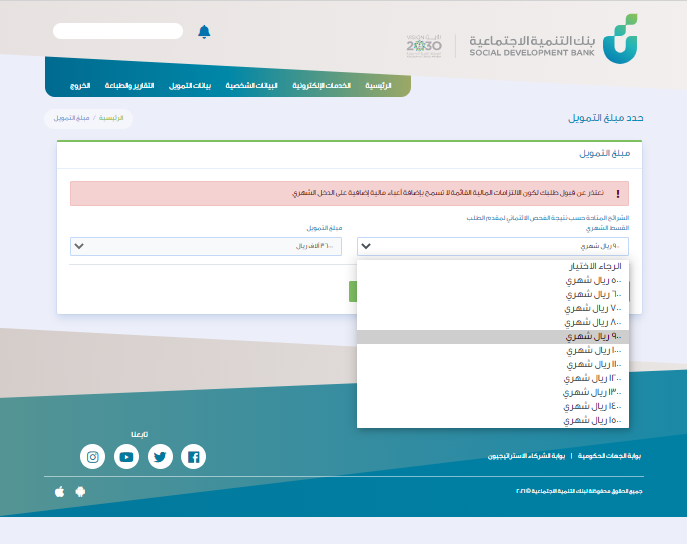 |
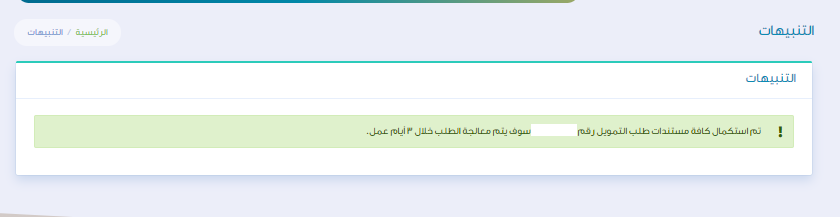
Step TwelveThe application journey has been completed and the customer is shown the application number and expected processing time | 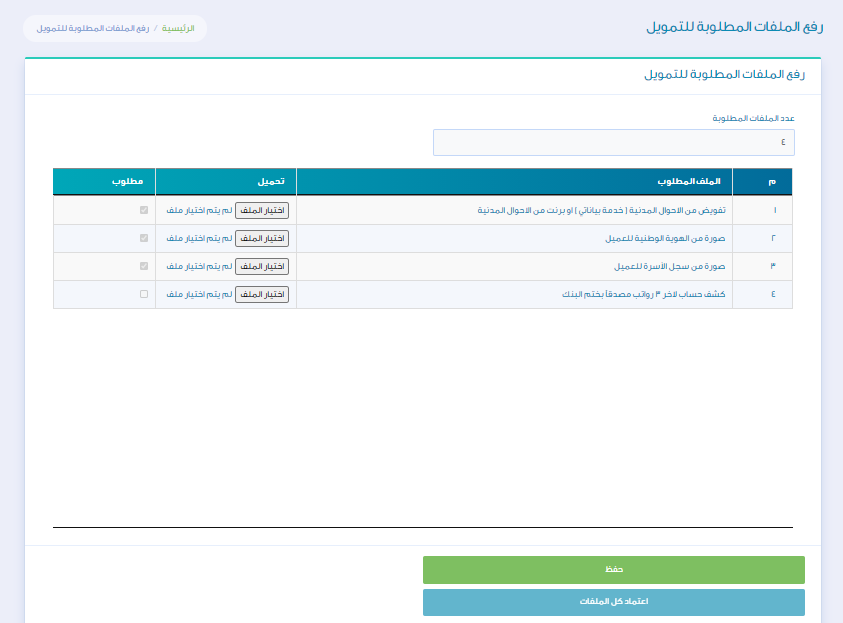 |
Notes
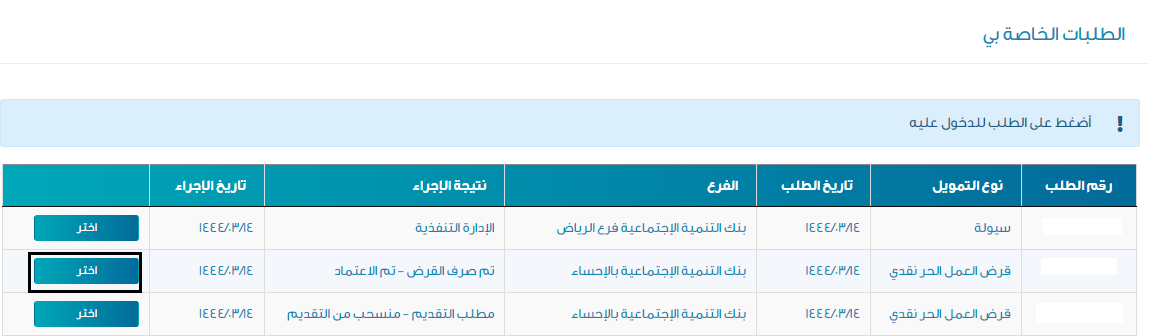
In case of incorrect entry, a message appears explaining the reason in red in the required field or incorrect entry icons. The customer can review his previous and current requests and choose between them. The customer receives a notification confirming the completion of the service via a text message.